
Asking password to open Chrome browser is part of security. But it's very annoying for users to enter the password when asking keyring to unlock when start Google Chrome browser.

We can bypass it. I tried this method in Ubuntu MATE.
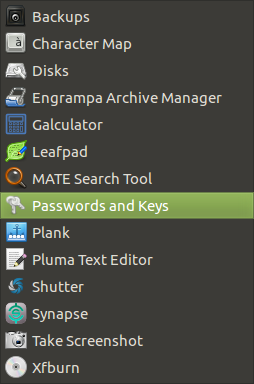
Open Applications > Accessories > Passwords and Keys. This item may in different places in other Linux distros.
If Passwords and Keys tool not available in your Linux, install it.
sudo apt-get update
sudo apt-get install seahorse


Next time Chrome browser will not ask password.

We can bypass it. I tried this method in Ubuntu MATE.
Open Applications > Accessories > Passwords and Keys. This item may in different places in other Linux distros.
If Passwords and Keys tool not available in your Linux, install it.
sudo apt-get update
sudo apt-get install seahorse
 |
| Right Click Login option and select Change Password. |
 |
| If you have already given a password. |
 |
| Leave the passwords blank and click Continue button. |
 |
| Ignore the warning and click Continue button. |


