Hiển thị các bài đăng có nhãn ubuntu. Hiển thị tất cả bài đăng

Thứ Sáu, 29 tháng 3, 2019

Install Zebra ZXP Series 3 printer on Ubuntu 16.04 LTS

Download and install libudev0 64 & 32 bit packages.

Download the Zebra ZXP Series 3 printer driver suitable for Ubuntu from following page.
https://www.zebra.com/ap/en/support-downloads/printers/card/zxp-series-3.html

Extract the packages and get the installer. Move the installer to the home folder.
Open a terminal and apply following command to start the installation.

sudo ./Unified_Zebra_ZXP3_Series_Card_Printer_Driver-1.0.0.0-Ubuntu_Linux-x86_64-Install

Follow the instructions in the installer window.
The printer settings will appear on application launcher.

Thứ Bảy, 2 tháng 3, 2019

Install VirtualBox 6 on Ubuntu/Debian

Download the packages
Visit VirtualBox PUEL edition website and download VirtualBox Extension Pack and .deb package.

https://www.virtualbox.org/wiki/Linux_Downloads

https://www.virtualbox.org/wiki/Downloads

Remove old version of VirtualBox

sudo apt remove virtualbox*

Install the dependencies for VirtualBox
Apply the following command in a Terminal,

sudo apt-get -y install gcc make linux-headers-$(uname -r) dkms

Apply the command to install the VirtualBox package downloaded,

sudo dpkg -i virtualbox*.deb

If any error message shows while installation, apply following command,

sudo apt install -f

Install the VirtualBox Extension Pack

Double click on the extension pack (Green) downloaded.

Thứ Bảy, 7 tháng 7, 2018

Install MariaDB on Ubuntu 18.04 LTS

Visit the following link and choose the desired version of MariaDB,

https://downloads.mariadb.org/

Following commands will add repository and install MariaDB 10.3,

sudo apt-get install software-properties-common

sudo apt-key adv --recv-keys --keyserver hkp://keyserver.ubuntu.com:80 0xF1656F24C74CD1D8

sudo add-apt-repository 'deb [arch=amd64,arm64,ppc64el] http://mirrors.tuna.tsinghua.edu.cn/mariadb/repo/10.3/ubuntu bionic main'

sudo apt update

sudo apt install mariadb-server

Thứ Năm, 24 tháng 5, 2018

Create PDF forms using LibreOffice

PDF form is convenient to collect data (e.g. survey, application form). Linux users can easily create PDF forms using LibreOffice Writer.

1. Enable Form Controls in Libre Office,
LibreOffice > View > Tool Bars > Form Controls


Form Controls tool bar

2. Open the document, click on Form Controls button and place on the document. Save the document for future editing purpose.

3. Save the document in PDF format.

4. Open PDF file and enter the input. After entering the input, save the PDF in a different name;
File > Save As

Thứ Ba, 4 tháng 7, 2017

Bypass "unlock your login keyring" with Chrome browser

Asking password to open Chrome browser is part of security. But it's very annoying for users to enter the password when asking keyring to unlock when start Google Chrome browser.


We can bypass it. I tried this method in Ubuntu MATE.

Open Applications > Accessories > Passwords and Keys. This item may in different places in other Linux distros.

If Passwords and Keys tool not available in your Linux, install it.

sudo apt-get update
sudo apt-get install seahorse


Right Click Login option and select Change Password.


If you have already given a password.
Leave the passwords blank and click Continue button.

Ignore the warning and click Continue button.
Next time Chrome browser will not ask password.

Thứ Tư, 15 tháng 7, 2015

Install Samsung ML-1676P laser printer on Ubuntu

Samsung ML-1676P is one of the  popular printer. A different method is essential to install Linux driver on Ubuntu.

1. Download ML-1670spl.ppd and rastertosamsungsplc (32bit and 64bit) files. Check your machine type (32bit or 64bit) and download appropriate rastertosamsungsplc utility. Copy files to home folder.

2. Connect Samsung ML-1676P print to the computer.

2. Go to Applications > System Tools > System settings > Printers

3. Click on Add New printer and proceed with the installation steps.
In the stage of choose a driver for your printer.
Select the PPD file (ML-1670spl.ppd) option on the driver selection window in the printer application.

4. Copy rastertosamsungsplc to /usr/lib/cups/filter/ in home folder of computer.

sudo su
mv rastertosamsungsplc /usr/lib/cups/filter/

The installation finished. Try to make a print out.

Information courtesy: Thejaswi Puthraya

Thứ Hai, 2 tháng 2, 2015

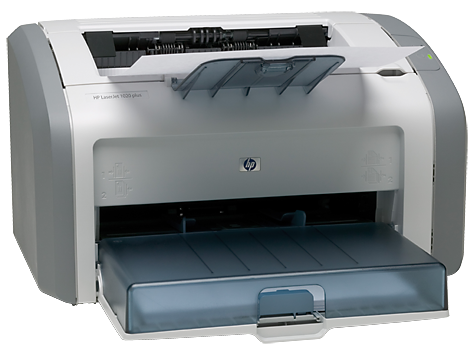
Add HP LaserJet 1020 Plus Printer to Ubuntu

 HP LaserJet 1020 Plus is a popular printer. This printer can work well with Windows. Ubuntu does not accept the printer in the first phase. We have to configure the printer proper to start work with. HP Linux drivers are available and make our work easy.


1. Connect your printer with computer.
2. Download HPLIP automatic installer from here
3. Give execute permission to the file, Right Click -Properties-Permissions
 4. Right Click and Open > Run in Terminal
5. Give password of Ubuntu to proceed the installation. Give answer for installation questions.

6. Download printer plug-in (same version number) from following link.
7. Give execute permission to the file, Right Click -Properties-Permissions
8. Right Click and Open > Run in Terminal
9. Follow the instructions in the installation process.
10. Restart computer.
11. Configure the printer apply the command sudo hp-setup in terminal.

Thứ Tư, 30 tháng 1, 2013

How to create Ubuntu Live CD/DVD using Remastersys [Obsoleted]

This tutorial is for creating a Live CD/DVD based on Ubuntu 12.04. You can also try latest version of Ubuntu Live CD/DVD by using the following instructions.

Step 1
Install Ubuntu 12.04 in a PC or inside a Virtual Box application.
Upgrade the system by installing latest packages, apply the following commands,

sudo su
apt-get update
apt-get upgrade

Install the additional applications (e.g. Gimp) for your Live CD/DVD.

Step 2
You can remove following packages to reduce the size of final ISO file.
 apt-get remove libreoffice-help-en-us ubuntu-docs thunderbird smbclient rhythmbox totem deja-dup gnome-orca transmission-gtk

Remove games,

sudo apt-get purge aisleriot gnome-sudoku mahjongg ace-of-penguins gnomine gbrainy


Remove the unnecessary packages deposited in cache using Bleachbit. Otherwise the size of Live DVD will be heavy. Bleachbit can remove lot of junk files and save space. Install Bleachbit using the following command,

apt-get install bleachbit

Open Bleachbit from Applications > System Tools


To use Bleachbit, see the documentation here.

Few more tips too make your Live DVD good,

Disable Apport to prevent unwanted system messages.

Open following file and fine the entry enabled=1 change to enabled=0.

sudo gedit /etc/default/apport

You can change boot splash to text mode. Open following file

gedit /etc/default/grub
 
and find following line,

GRUB_CMDLINE_LINUX_DEFAULT="quiet splash"

Remove the entry "quite splash", save file and close.


Step 3
Installation of Remastersys in Ubuntu 12.04. Apply the following commands.

sudo su
wget -O - http://www.remastersys.com/ubuntu/remastersys.gpg.key | apt-key add -

gedit /etc/apt/sources.list


Add the following lines in the file, save and close.

#Remastersys Precise
deb http://www.remastersys.com/ubuntu precise main


Update the package repository and install Remastersys

apt-get update
apt-get install remastersys remastersys-gtk

Remastersys will appear in Applications > System Tools > Administration
  
See the screen shots below,

Main screen of Remastersys.


You can assign a name for Live DVD.


You can export user settings to Live DVD. It means, you can assign an inbuilt user name and password for DVD.

You can click on appropriate buttons to build Live DVD. You need Internet connection to run Remastersys. Certain packages to be installed from Internet to build the Live DVD. The output will be in .iso format, you can locate it from /home/remastersys. Burn the .iso file in a DVD and boot from computer.

Thứ Hai, 10 tháng 10, 2011

Thứ Tư, 15 tháng 6, 2011

Thứ Năm, 24 tháng 2, 2011

How to install Gyachi in Ubuntu 10.04 / 10.10

Gyachi is a messenger tool equivalent to Yahoo Messenger.
Yahoo Messenger has no Linux version.
Gyachi can install in Ubuntu and can work like Yahoo Messenger.


Installation
Open Application > Accessories > Terminal and apply following commands,


sudo add-apt-repository ppa:adilson/experimental
sudo apt-get update
sudo apt-get install gyachi

You can open Gyachi from Applications > Internet 


Thứ Tư, 19 tháng 1, 2011

Docky for your desktop

Docky is a short cut bar in Linux Desktop. You can quickly launch applications from Docky.  You can try to install it in your Ubuntu.

Open  System > Synaptic Package Manager

 Search for docky, select and install.

You can also install through Applications > Ubuntu Software Centre

It will appear in desktop after finish the installation process.


You can open control center for Dock customization. There, you can increase the size of the icons. You can also create another new dock in the same window.
After creating second dock, you have to add Docklets to be display in Dock 2. I selected Book Marks. Book Marks can act as shortcut to many folders in Home folder.